0. 어떻게 진행되나요?
영상에서 곡을 찾고, 필요한 구간을 클립으로 저장합니다. 원본 영상은 그대로 유지됩니다.
처음 실행한다면 다음 ‘환영합니다’부터 시작하세요. 이미 설정했다면 ‘영상 열기’로 이동하세요.
어떤 영상에서 곡을 찾을 수 있나요?
곡 인식은 화면의 자켓을 공식 자켓과 비교하는 방식입니다. 인식 영역 안에 자켓이 정사각형 그대로, 잘리지 않고 들어와야 인식됩니다.
정사각형인식 가능 비뚤어짐인식 불가 눌림인식 불가 잘림인식 불가
영상에서 곡을 찾고, 필요한 구간을 클립으로 저장합니다. 원본 영상은 그대로 유지됩니다.
처음 실행한다면 다음 ‘환영합니다’부터 시작하세요. 이미 설정했다면 ‘영상 열기’로 이동하세요.
곡 인식은 화면의 자켓을 공식 자켓과 비교하는 방식입니다. 인식 영역 안에 자켓이 정사각형 그대로, 잘리지 않고 들어와야 인식됩니다.
데이터 폴더를 정하면 곡 인식에 필요한 파일을 받습니다.
파일 또는 폴더 중 한 방법으로 영상을 여세요.
A·B·C 중 편한 방법 하나로 시작과 끝을 정하세요.
같은 촬영 구도라면 저장한 프로필을 사용하세요.
프로필 선택에서 프로필을 고르세요. 받은 JSON·ZIP 파일은 오른쪽 가져오기 아이콘으로 여세요.
영역 선택에서 자켓(곡 이미지)을 고르세요.
자켓 전체가 들어오도록 드래그하세요. 1P 이름과 1P 달성률도 각각 글자를 감싸도록 지정하세요. 오른쪽 예시와 현재 지정 영역을 비교하면 범위를 확인할 수 있습니다.
현재 화면 인식 확인을 누르세요. 인식한 곡명과 이름을 확인하세요.
이 구간에서 곡 찾기 →를 누르세요. 긴 영상은 곡 찾기에 시간이 오래 걸릴 수 있습니다. 하단 진행 상태를 확인하세요.
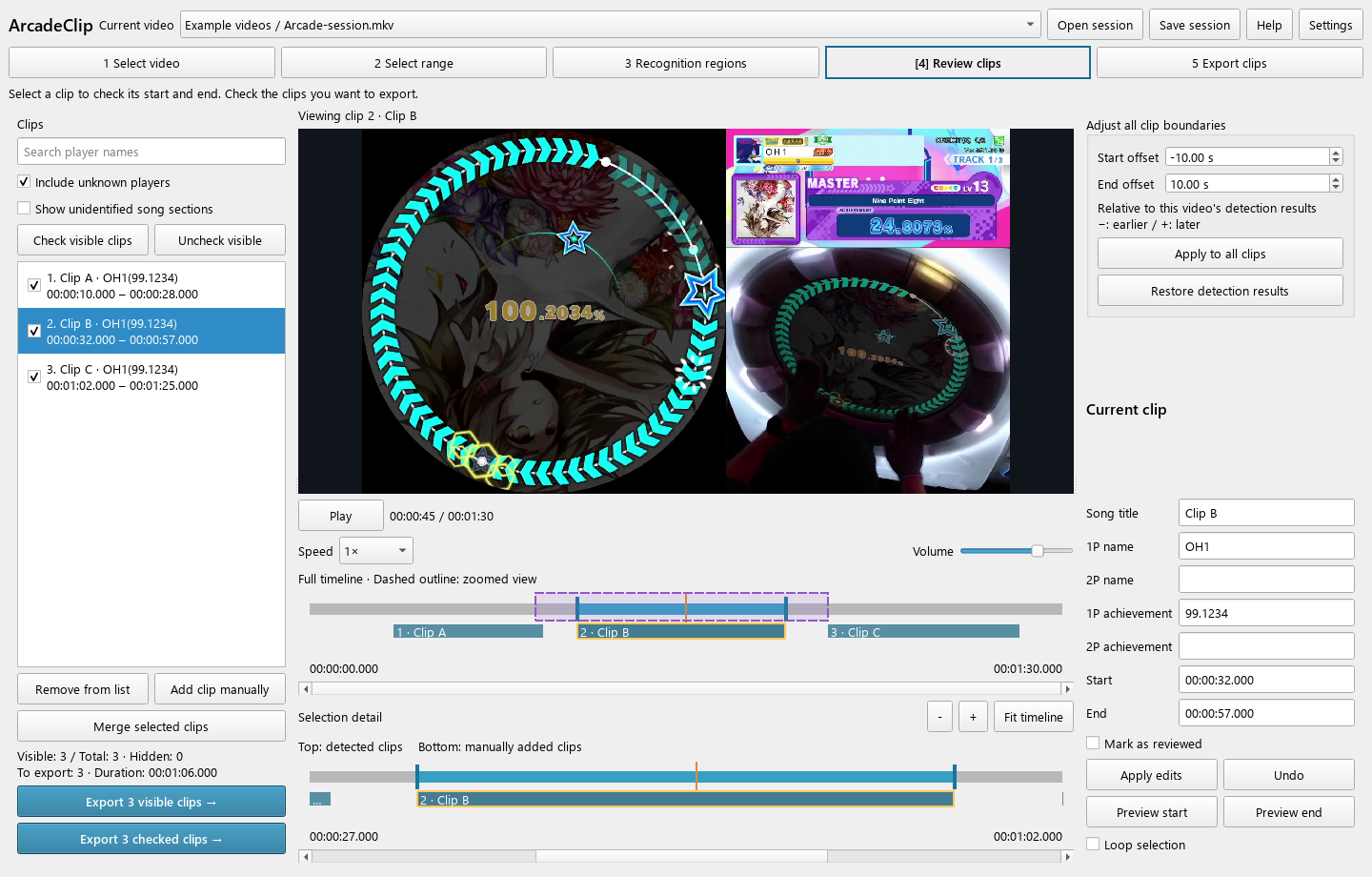
클립을 선택하면 편집할 수 있습니다. 체크박스는 저장할 클립을 표시합니다.
목록에서 클립을 선택하면 편집할 수 있습니다. 저장할 클립은 체크박스로 표시하세요.
이름을 검색해 목록을 좁히세요. 보이는 클립 체크는 현재 보이는 항목에 체크합니다. 필터로 숨긴 클립의 체크는 유지되므로, 저장 전에 하단의 저장 대상 수를 확인하세요.
체크한 클립 …개 저장 설정 → 또는 보이는 클립 …개 저장 설정 →로 저장 대상을 확정하세요. 파일은 다음 화면에서 저장합니다.
파일명이나 챕터 제목을 바꾸려면 곡명·이름·달성률을 수정하고 수정 적용을 누르세요. 확인한 클립은 검수 완료로 표시에 체크할 수 있습니다.
필요할 때만 파란 구간의 양끝을 드래그하세요. 오른쪽 시작·끝에 시간을 입력하고 수정 적용을 눌러도 됩니다. 이 값은 실제 저장 구간을 바꿉니다. 시작 부분 재생·끝 부분 재생으로 확인하세요.
클립 시작·끝 일괄 조정에서 시작 오프셋·끝 오프셋을 입력하고 모든 클립에 일괄 적용을 누르세요. 예: 시작 −10초, 끝 +10초는 곡 앞뒤를 10초씩 더 담습니다.
현재 영상의 자동 인식 클립에 적용됩니다. 매번 자동 인식 원본을 기준으로 계산하며, 직접 추가한 클립은 그대로 둡니다. 개별로 시간을 수정한 클립이 있으면 유지할지 선택할 수 있습니다.
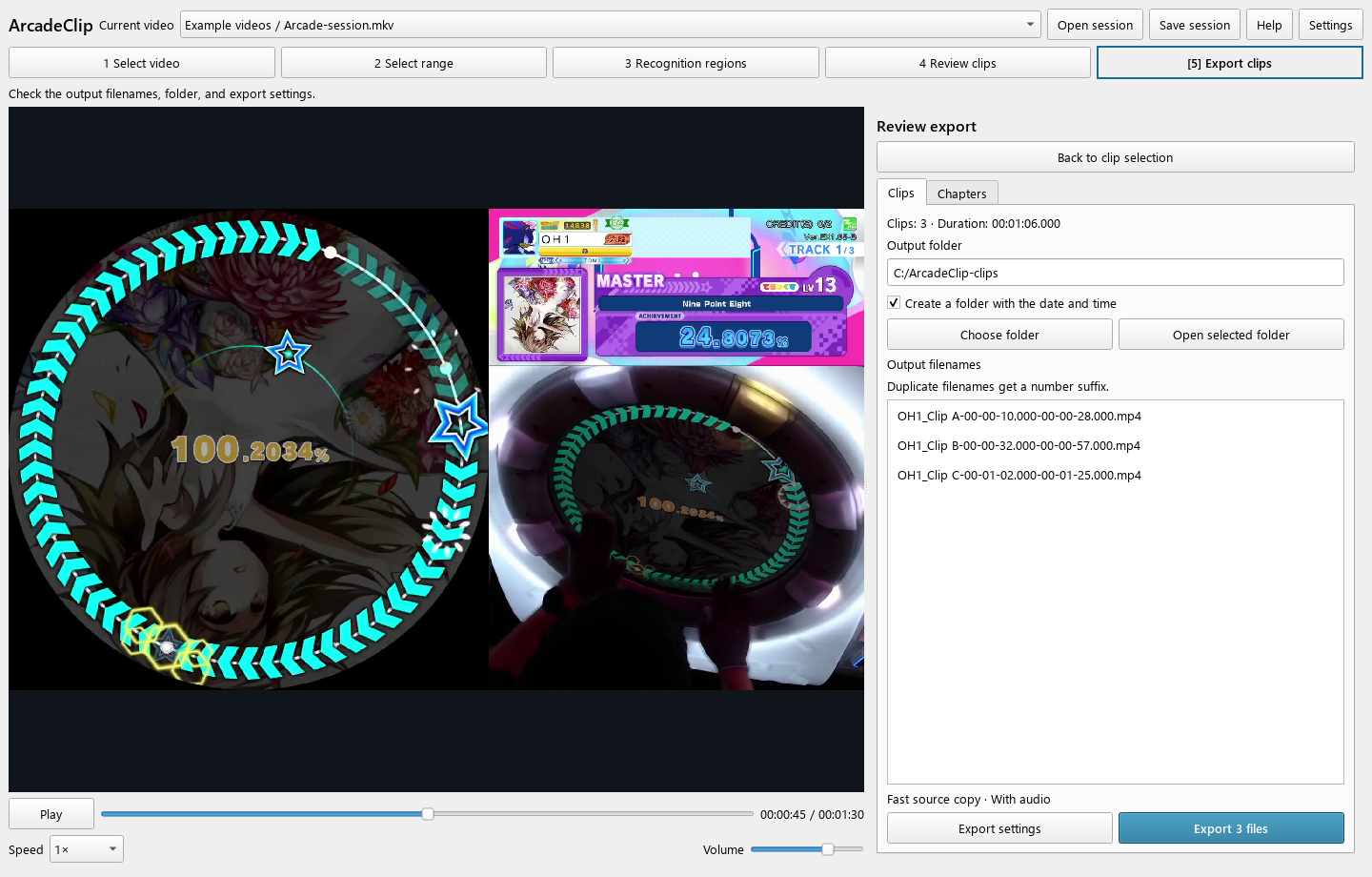
클립 탭에서 폴더와 파일명을 확인한 뒤 저장하세요.
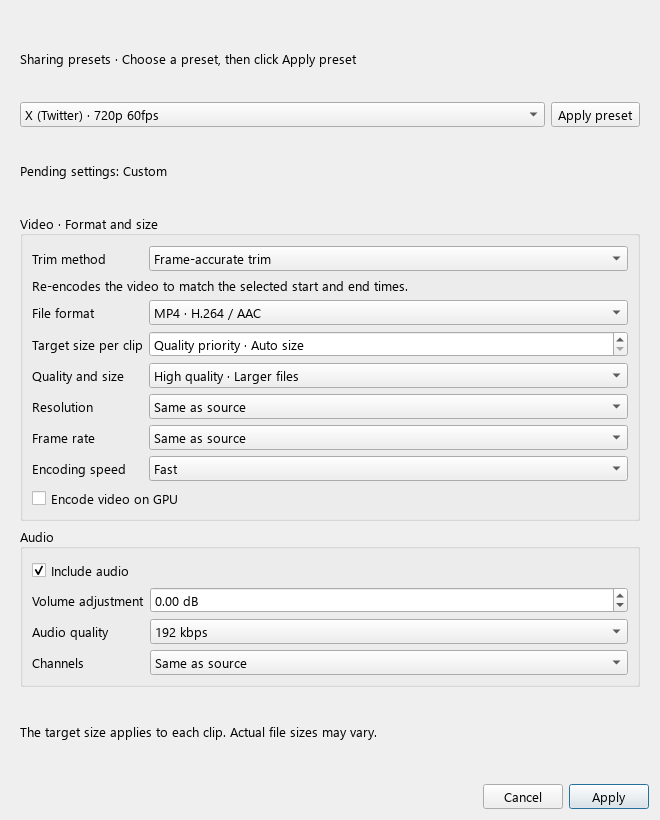
시작·끝을 정확히 맞추려면 정확한 구간 자르기를 쓰세요.
프리셋을 고른 뒤 프리셋 적용을 누르세요. 창 아래 적용을 눌러 확정하세요.
정확한 구간 자르기는 지정한 경계에 맞춰 변환합니다. 원본 빠른 복사는 빠르지만 경계가 조금 달라질 수 있습니다.
클립당 목표 크기는 클립별 목표 크기입니다. 0이면 화질 기준으로 저장합니다. 실제 크기는 달라질 수 있습니다.
소리 포함으로 소리를 포함하세요. 음량 조절의 0은 원래 음량입니다.
CPU로 저장할 때는 처리 속도를 고르세요. GPU로 영상 압축을 켜면 사용 가능한 GPU 인코더로 저장합니다. GPU 압축을 선택하면 처리 속도 선택이 비활성화됩니다.
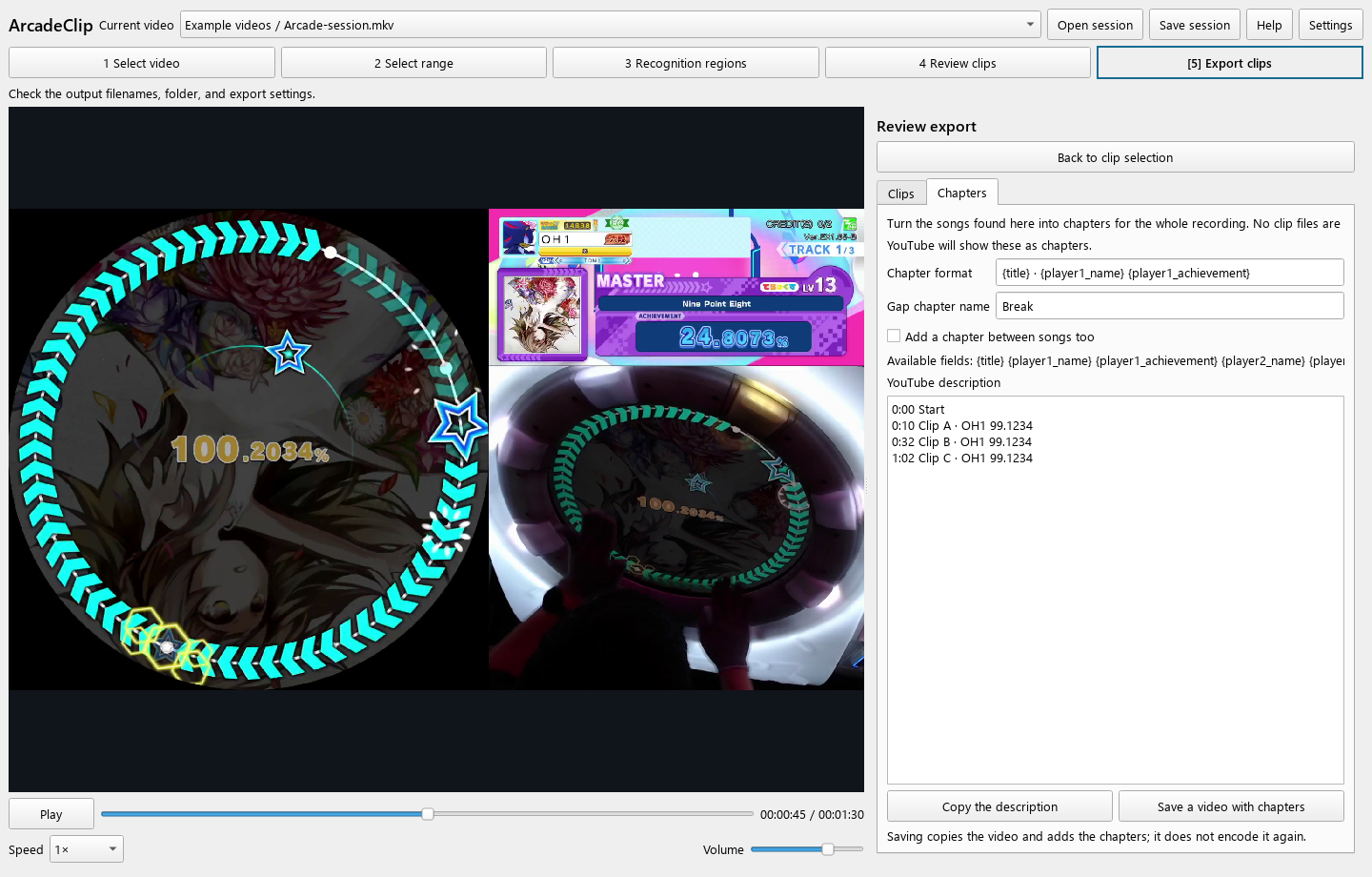
클립 확인에서 사용할 클립을 고르고 저장 설정 화면의 챕터 탭을 여세요.
영상 열기 화면에서 YouTube 링크를 붙여넣고 영상 정보 확인 →를 누르세요.
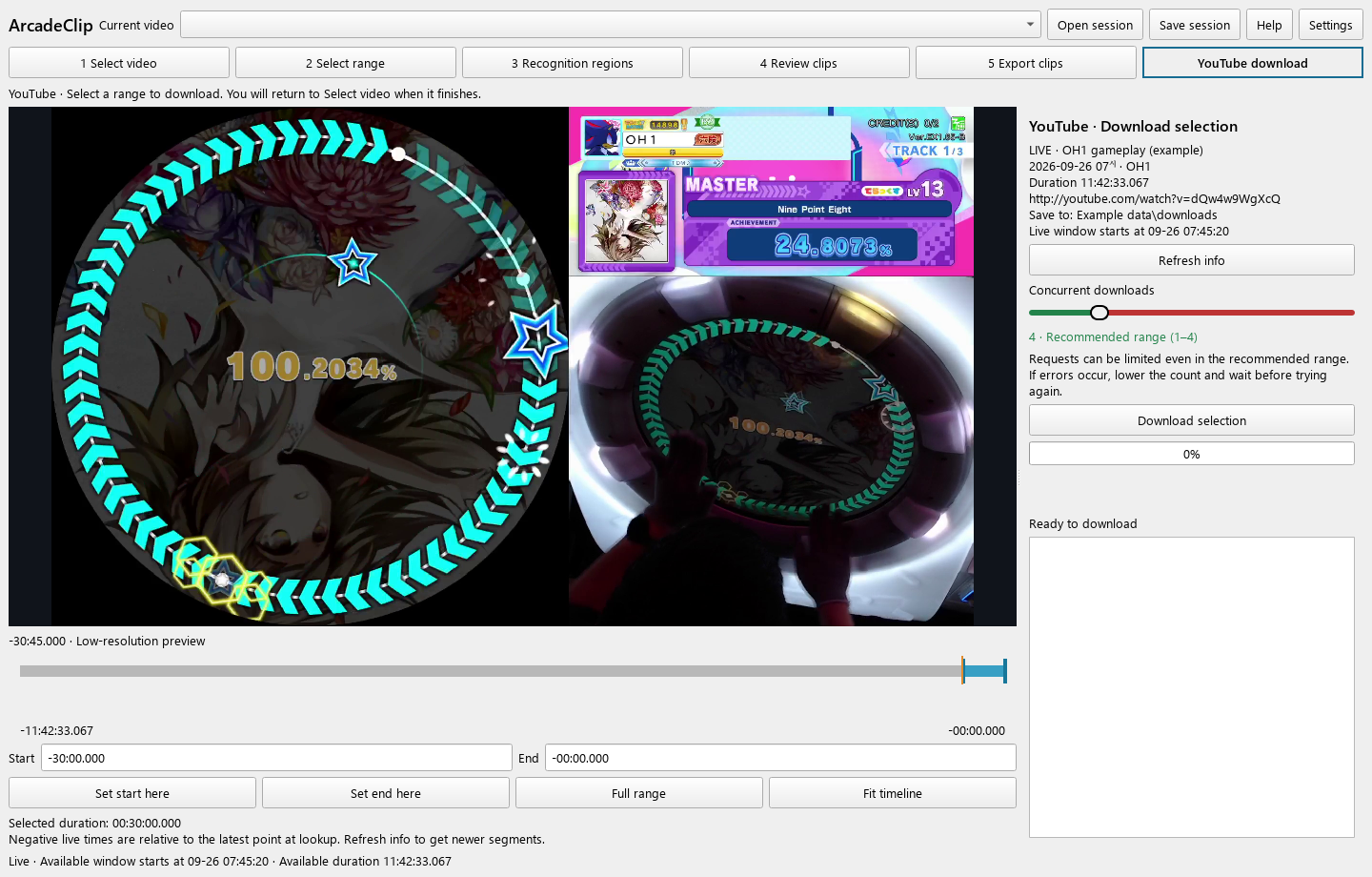
슬라이더 양끝을 끌거나 시작·끝에 시간을 입력하세요. 시간축에서 보고 싶은 위치를 누르고 1초 기다리면 미리보기가 나옵니다. 현재 위치를 시작으로·현재 위치를 끝으로로 경계를 정할 수도 있습니다.
동시 다운로드 수는 기본 4개입니다. 처음에는 녹색 범위인 1–4개를 사용하세요. 요청 제한 오류가 나면 수를 줄이고 잠시 후 다시 시도하세요.
선택 구간 다운로드를 누르세요.
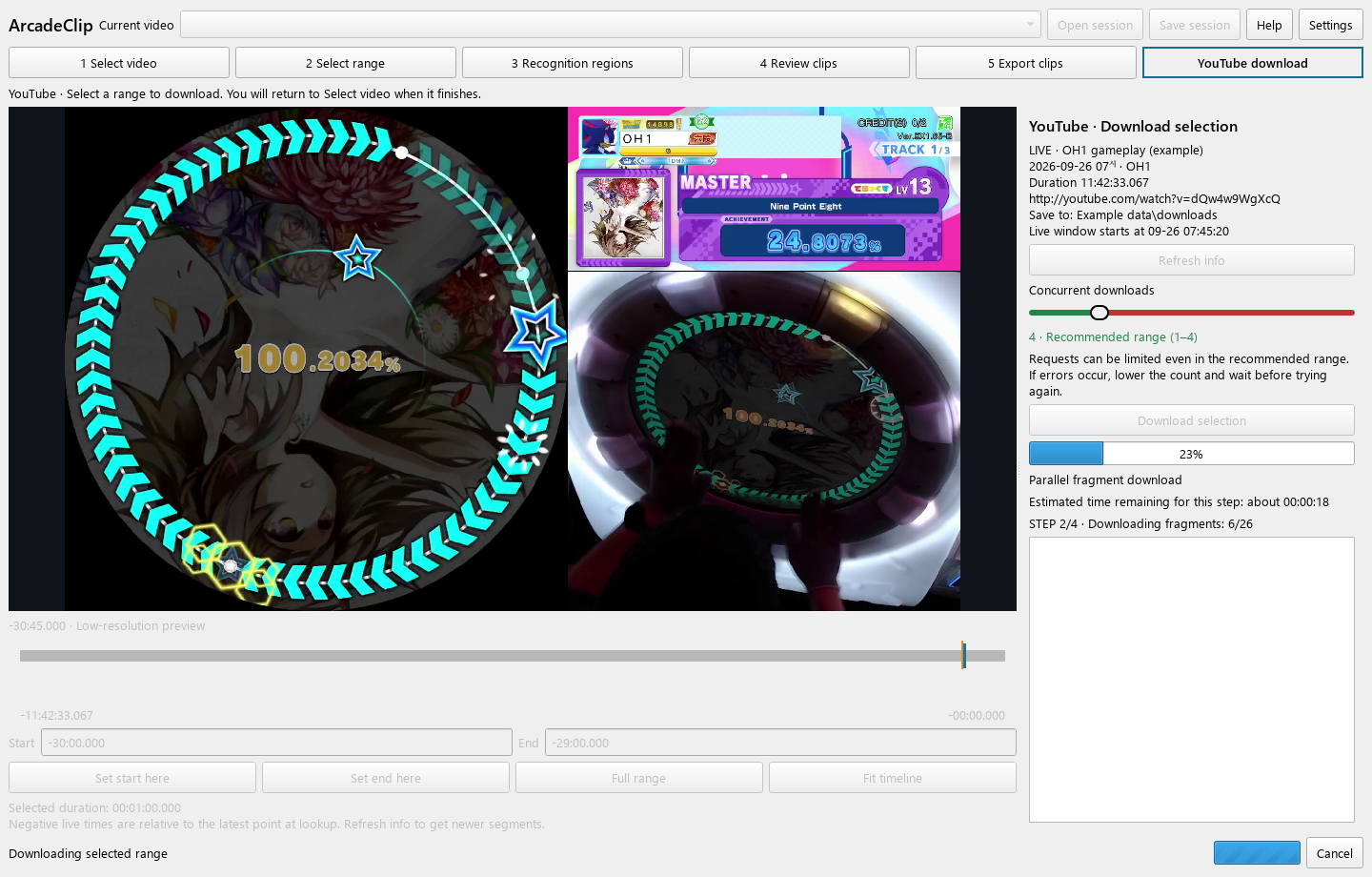
오른쪽에서 현재 단계·진행률·예상 남은 시간을 확인하세요. 완료되면 영상 선택 화면으로 돌아옵니다. 받은 영상에서 인식할 구간과 정확한 클립 경계를 조정하세요.
선택 구간 다운로드를 누른 뒤 오른쪽 진행 상태를 확인하세요.
다음에 이어할 편집 내용은 작업 저장으로 저장하세요.
상단 Settings 버튼으로 여세요.
Settings → 자켓 데이터를 여세요.
Settings → 인식을 여세요. 먼저 인식 영역과 현재 장면이 맞는지 확인하세요.
Settings → 진단을 여세요.
Settings → 정보를 여세요.
| 키 | 동작 |
|---|---|
| F1 | 도움말 열기 |
| Space / K | 로컬 영상 재생·일시정지 / 일시정지 |
| ← / → | 로컬: 재생 중 1초·일시정지 중 한 프레임 이동. YouTube: 미리보기 위치 1초 이동 |
| Shift + ← / → | 1초 이동 |
| Ctrl + ← / → | 5초 이동 |
| J / L | 로컬 영상 뒤로 탐색 / 앞으로 재생 · 반복하면 속도 증가 |
| Home / End | 영상 처음 / 끝으로 · 라이브는 조회한 구간 처음 / 최신 지점 |
| I / O | 현재 위치를 구간 시작 / 끝으로 |
| Alt + ← / → | 로컬 영상의 구간 시작 / 끝으로 이동 |
| Ctrl + drag | 시간축: 구간 길이를 유지하며 이동 · 영상: 화면 이동 |
| Alt + drag | 다른 경계에 맞추지 않고 구간 조정 |
| Ctrl / Shift + click | 클립 개별 / 연속 선택 |
| A / Delete | 클립 직접 추가 / 목록에서 제거 |
| + / − / 0 | 시간축 확대 / 축소 / 전체 보기 |
| wheel / Shift + wheel | 시간축 가로 이동 / 빠르게 이동 |
| Ctrl + wheel | 앱 영상·시간축 확대·축소 |
| Ctrl + + / − | 인식 영역 화면의 영상 확대·축소 |
| Ctrl + 0 / Ctrl + middle click | 인식 영역 화면의 영상 맞춤 |
| Ctrl + S | 작업 JSON 저장 |
| Ctrl + E | 체크한 클립의 저장 설정 열기 |
| Ctrl + Z | 직전 클립 편집 되돌리기 |
문자 입력 중에는 입력란의 편집 단축키가 우선합니다.
Find songs in a video, then save the sections you need as clips. The source video stays unchanged.
On your first launch, start with Welcome below. If setup is complete, go to Open a video.
Songs are recognized by comparing the jacket on screen with the official art, so the jacket has to sit inside the region square and uncropped.
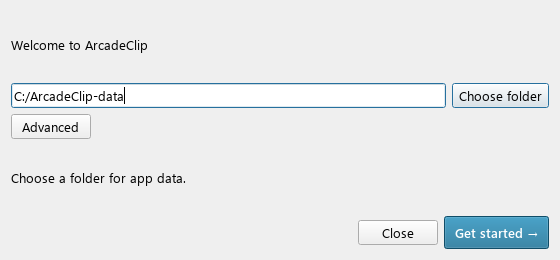
Choose where to keep the files used for song recognition.
Use Choose folder to choose a data folder. The first launch downloads about 100 MB of song jackets.
Click Get started →. The download may take about 10 minutes. Wait for it to finish.
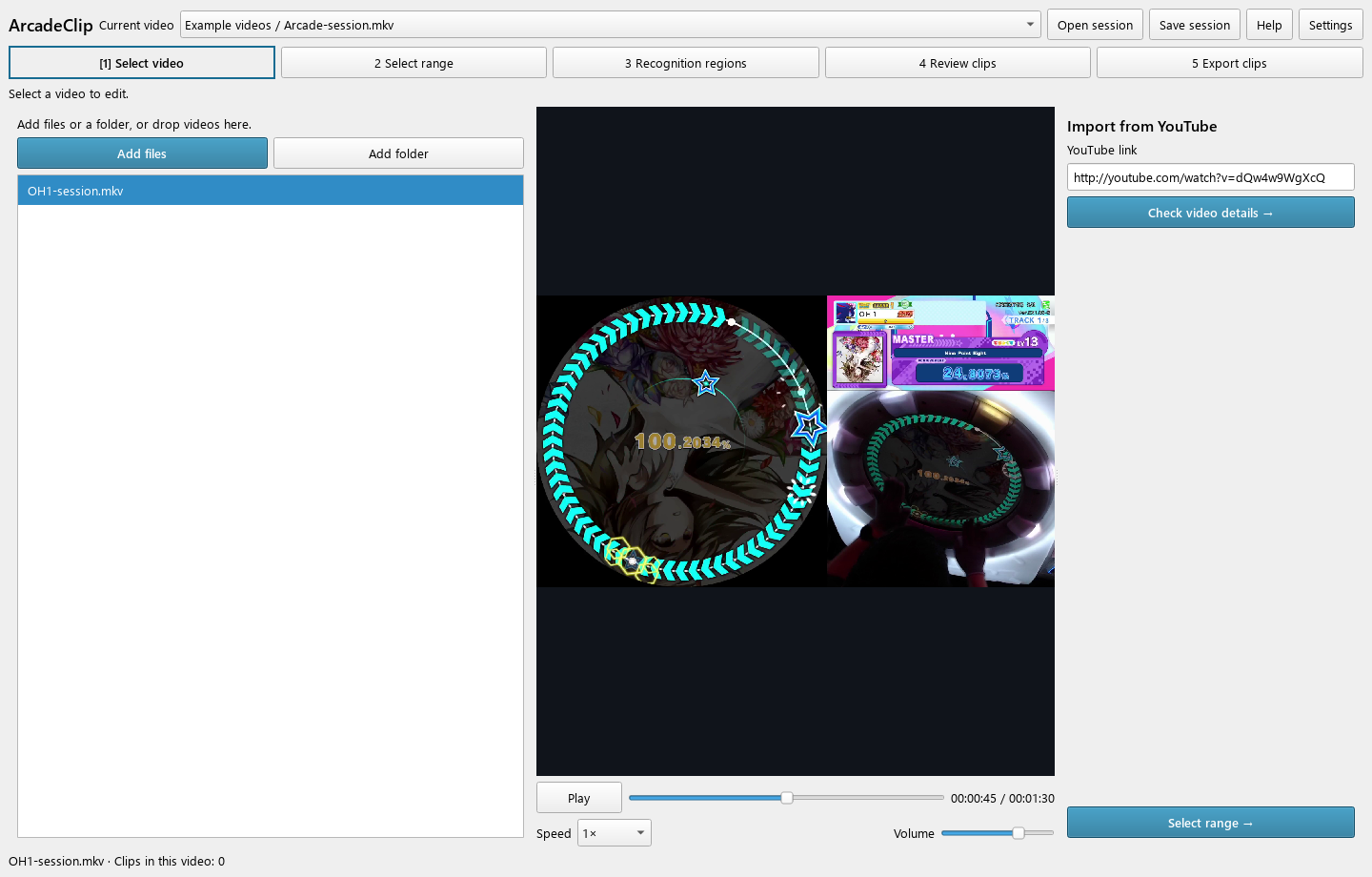
Open a video using either files or a folder.
Click Add files. Choose a video file to open its preview.
Click Add folder to add several videos. You can also drag video files into the window.
Choose a video in Current video. The clip list switches to that video.
Once the video opens, click Select range →.
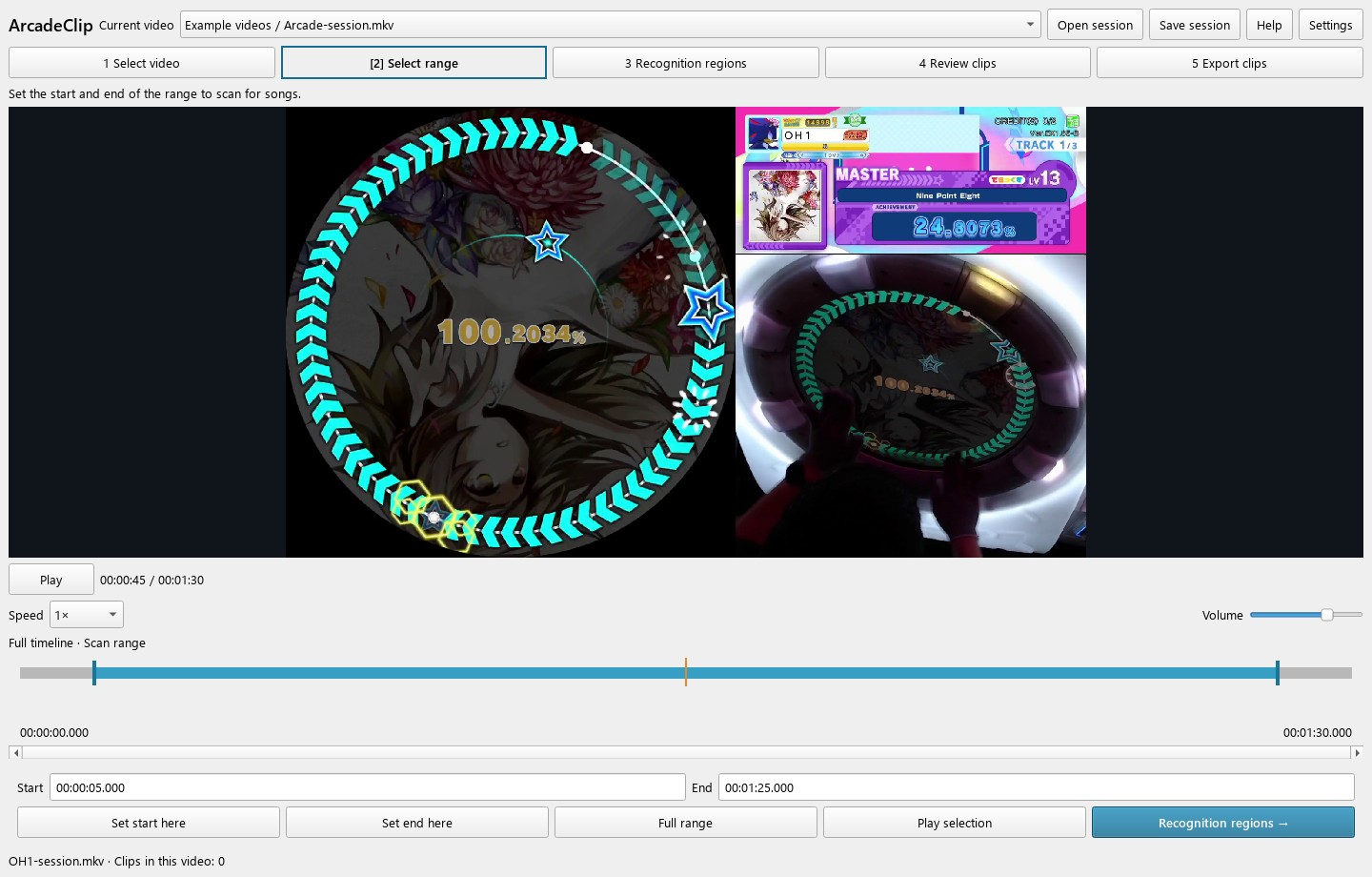
Use any one of methods A–C to set the start and end.
Enter Start and End times. For example, 00:01:30.000 means 1 minute and 30 seconds.
At the first scene, click Set start here. At the last scene, click Set end here.
Drag either edge of the blue selection. Use Play selection to check the range.
When the range is right, click Recognition regions →.
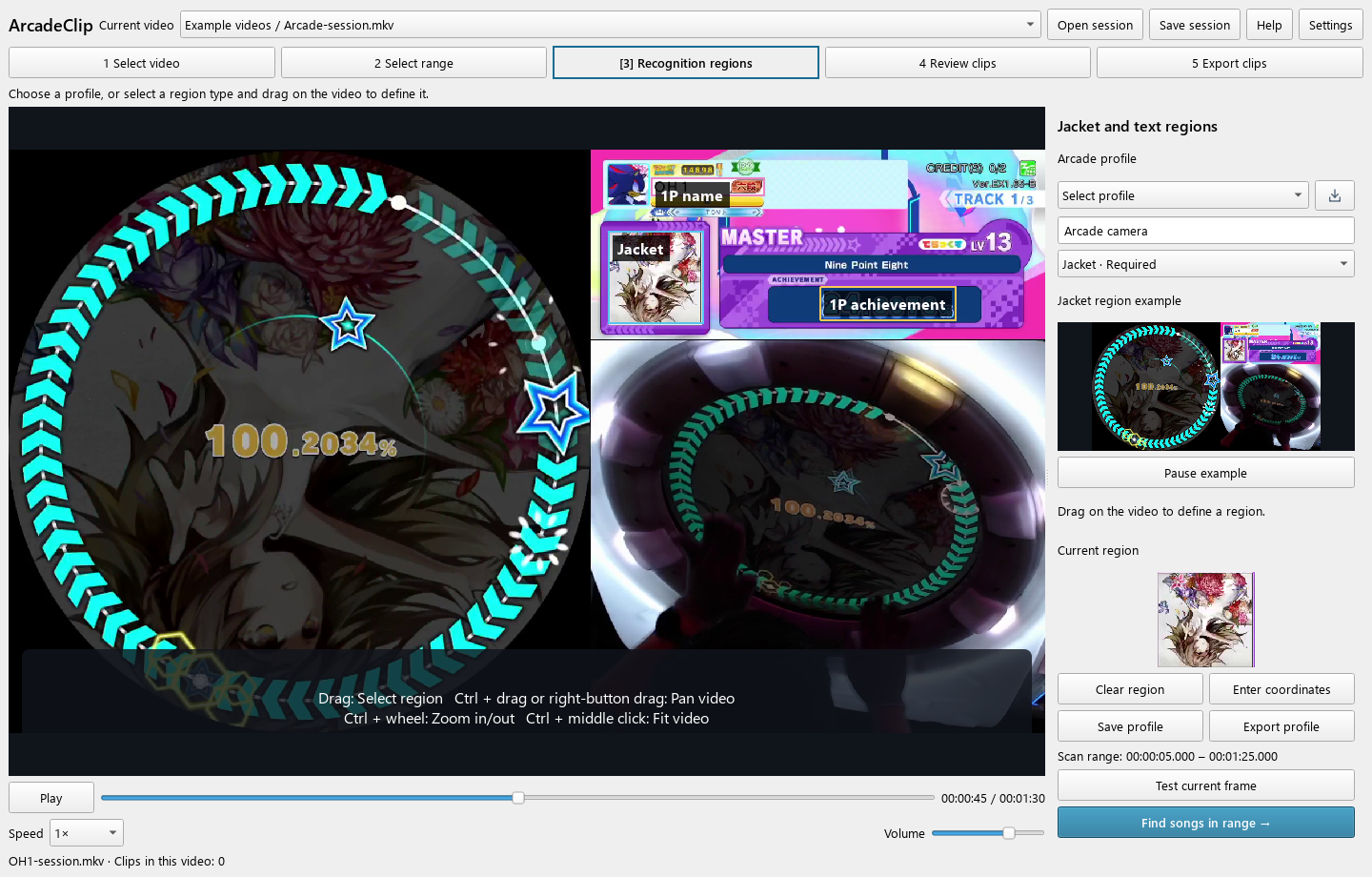
Reuse a saved profile for the same camera layout.
Choose a profile in Select profile. Use the import icon on its right to open a shared JSON or ZIP file.
Choose Jacket (the song artwork) in Choose region.
Drag around the whole jacket. Define separate regions around the 1P name and 1P achievement text. Compare the example and Current region on the right to check the crop.
Click Test current frame. Check the detected song title and player name.
Click Find songs in range →. Finding songs in a long video can take a while. Check progress at the bottom.
Select a clip to edit it. Check its box to mark it for saving.
Select a row to edit that clip. Use its checkbox to mark it for saving.
Search a player name to narrow the list. Check visible clips checks the visible items. Hidden clips keep their checkmarks, so check the export count at the bottom before continuing.
Confirm your clips with Export … checked clips → or Export … visible clips →. Save the files on the next screen.
To change a filename or chapter title, edit the song title, player names, or achievement and click Apply edits. You can mark a checked clip with Mark as reviewed.
If needed, drag either edge of the blue selection. You can also enter Start and End times on the right and click Apply edits. These values change the saved video range. Check it with Preview start and Preview end.
In Adjust all clip boundaries, enter Start offset and End offset, then click Apply to all clips. For example, −10 seconds at the start and +10 seconds at the end includes 10 extra seconds on each side.
This affects detected clips in the current video. Each application uses the original detection times; it does not keep adding time. Manually added clips stay unchanged. If you edited a clip’s boundaries individually, you can choose to keep them.
In the Clips tab, check the folder and filenames, then save.
Choose an output folder with Choose folder. The date-folder option creates a subfolder when export starts.
Check the names under Output filenames. Duplicate filenames get a number suffix.
Open Export settings to choose trimming and quality options. Click Apply to use them.
Click Export … files. When it finishes, use Open selected folder to view the results.
Use Frame-accurate trim for exact start and end times.
Choose a preset and click Apply preset. Confirm with Apply at the bottom of the window.
Frame-accurate trim re-encodes at your chosen boundaries. Fast source copy is faster, but the boundaries may shift slightly.
Target size per clip sets a size target for each clip. Zero uses the quality setting. Actual sizes can vary.
Enable Include audio to keep sound. A Volume adjustment of 0 keeps the original level.
For CPU encoding, choose Encoding speed. Enable Encode video on GPU to use an available GPU encoder. The encoding-speed choice is disabled while GPU encoding is selected.
Choose clips in Review clips, then open the Chapters tab on the export screen.
Set the title in Chapter format. For example, {title} inserts the song title. To mark breaks between songs, enable Add a chapter between songs too and enter a Gap chapter name.
Check the times and titles in YouTube description. Times are relative to the whole recording. If a duration or chapter-count notice appears above, adjust the clip ranges.
Click Copy the description, then paste the text into your YouTube video description.
Click Save a video with chapters and choose a new file location. This copies the full recording at source quality and adds chapters.
On the video selection screen, paste a YouTube link and click Check video details →.
Drag either slider handle or enter Start and End times. Click a position on the timeline and wait one second for a preview. You can also set boundaries with Set start here and Set end here.
Concurrent downloads defaults to 4. Start within the green range of 1–4. If requests are limited, lower the count and wait before trying again.
Click Download selection.
Check the current step, progress, and estimated time remaining on the right. When finished, the app returns to Select video. Use the downloaded video to choose the scan range and fine-tune clip boundaries.
After clicking Download selection, watch the progress on the right.
The steps are range checks, original download, merging and validation, and completion. During download, the app shows the fragment count and estimated time left for that step.
If progress is slow, check the last message in the log. Videos without parallel fragment support use the standard download method.
Click Cancel at the bottom to stop. If an error stops the download, read the message, use Refresh info, and select the range again.
Use Save session to keep your edits for later.
Save a JSON file with Save session. It keeps each video’s clips, edits, and playback volume.
Choose the saved JSON with Open session. Keep the source videos at their original paths.
Open Settings from the top bar.
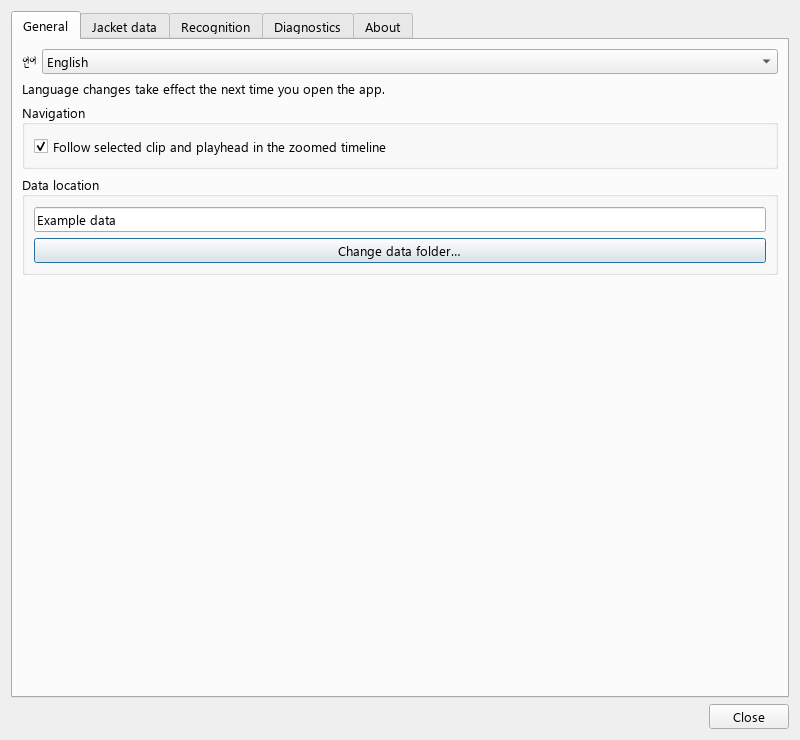
In General, choose 한국어 or English under 언어. Reopen the app to apply it.
Enable Follow selected clip and playhead in the zoomed timeline to keep the selected clip or playhead in the zoomed timeline.
Use Change data folder… to choose a new location. You can move or copy existing jackets. The app restarts when the new folder is ready.
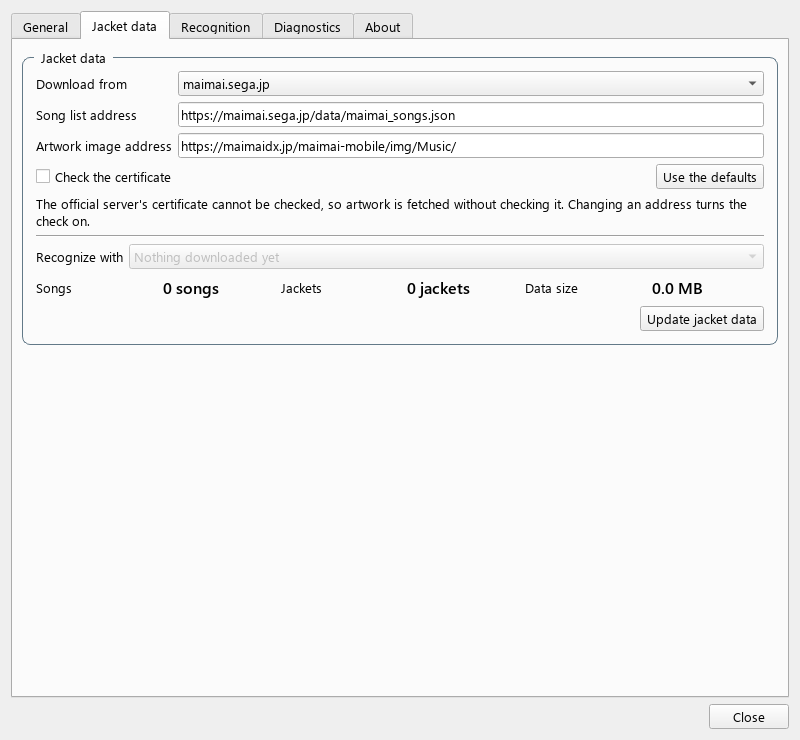
Settings → Jacket data opens these controls.
Choose Download from. If you have been given other addresses, select Enter an address and enter the song-list and artwork-image addresses.
Click Update jacket data and wait for it to finish. Check the song count, jacket count, and storage size.
Choose downloaded data in Recognize with. Select All data to use data from several servers together.
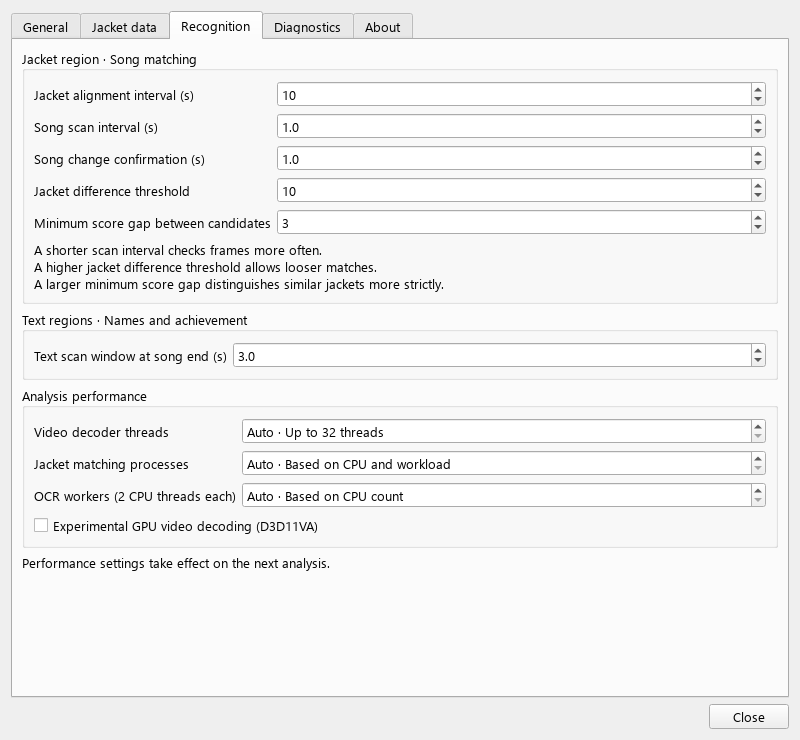
Open Settings → Recognition. First check that the regions and current frame are correct.
Lower Jacket alignment interval (s) to check the jacket position more often.
Lower Song scan interval (s) to scan more often. If similar jackets get confused, try lowering Jacket difference threshold or raising Minimum score gap between candidates.
Increase Text scan window at song end (s) to read text over a longer interval near the song’s end. Check that the text regions frame the actual text.
Start with the automatic values. More workers can use more CPU and memory. Changes take effect on the next analysis.
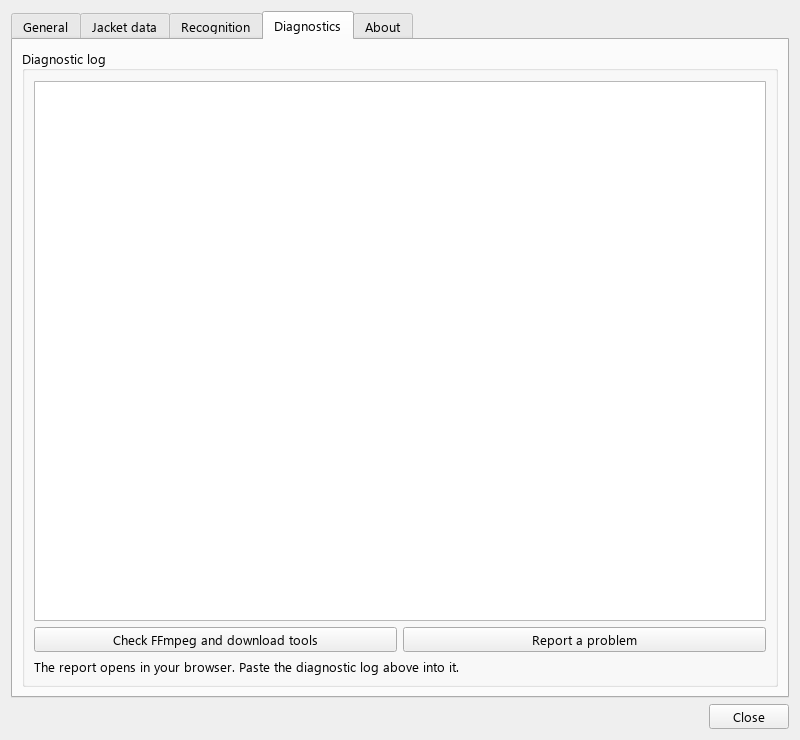
Open Settings → Diagnostics.
Find the failed operation and its last log message. For a download error, also note the link and selected range.
For media or download-tool errors, click Check FFmpeg and download tools and read the results above.
Report a problem opens a report form in your browser. Add the steps to reproduce and the error log, then review and submit it.
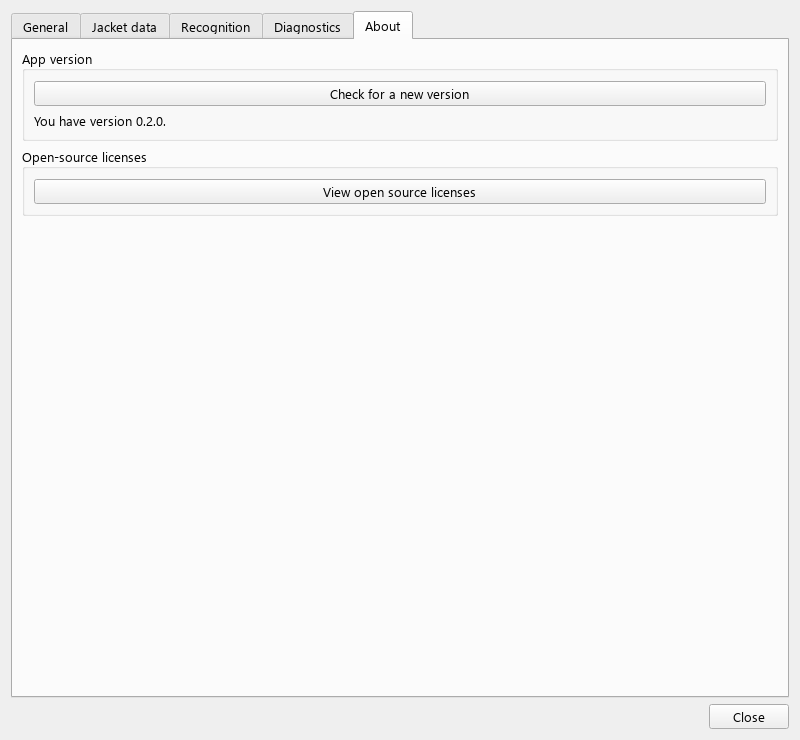
Open Settings → About.
Click Check for a new version. If a new version is available, you can open its download page.
Open View open source licenses to read notices for the included libraries and tools.
| Key | Action |
|---|---|
| F1 | Open Help |
| Space / K | Local video: play/pause / pause |
| ← / → | Local: seek 1 second while playing or one frame while paused. YouTube: seek the preview by 1 second |
| Shift + ← / → | Seek 1 second |
| Ctrl + ← / → | Seek 5 seconds |
| J / L | Local video: seek backward / play forward; repeat to increase speed |
| Home / End | Go to the start / end; for live streams, the oldest / latest point in the fetched window |
| I / O | Set selection start / end to the playhead |
| Alt + ← / → | Local video: go to the selection start / end |
| Ctrl + drag | Timeline: move the selection without changing its length; video: pan |
| Alt + drag | Adjust the selection without snapping to other boundaries |
| Ctrl / Shift + click | Select individual clips / a range of clips |
| A / Delete | Add a clip manually / remove from the list |
| + / − / 0 | Zoom the timeline in / out / fit |
| wheel / Shift + wheel | Scroll the timeline / scroll faster |
| Ctrl + wheel | Zoom the video or timeline in the app |
| Ctrl + + / − | Zoom the video in Recognition regions |
| Ctrl + 0 / Ctrl + middle click | Fit the video in Recognition regions |
| Ctrl + S | Save the session JSON |
| Ctrl + E | Open export settings for checked clips |
| Ctrl + Z | Undo the last clip edit |
While typing, text-field editing shortcuts take priority.